Why Your TM SIM Has No Signal: Causes and Fixes
A TM SIM with no signal usually comes from one of four things: a device setting, a damaged SIM, an account problem, or weak coverage where you are standing. In some cases the real cause is that the SIM was deactivated for missing its registration deadline under the SIM Registration Act. This guide walks through each cause in order, starting with the fastest fixes.

Common Reasons Why Your TM SIM Has No Signal
Before trying any fix, it helps to know what usually causes this. Based on Globe’s own troubleshooting guidance, a TM SIM loses signal for one of five reasons.
- Weak or no coverage in your current location, especially indoors or in areas with thick concrete or metal structures.
- A worn out, dirty, or physically damaged SIM card.
- A phone network setting that is misconfigured, such as the wrong network mode or an incorrect APN.
- Outdated phone software that has trouble maintaining a stable connection.
- An inactive or deactivated account, whether from non-payment, a full year without any load, or a SIM that missed its registration deadline under the SIM Registration Act.
Quick Fixes to Try First
According to Globe’s official troubleshooting page, most no signal issues clear up with basic steps:
- Restart your phone. This refreshes its connection to the nearest cell tower.
- Remove your SIM card, wait 30 seconds, then reinsert it firmly.
- Turn off Airplane Mode if it is on.
- Open your phone’s mobile network settings and set the network mode to Auto, so it can switch between LTE, 3G, and 2G as needed.
- If mobile data specifically is not working, check that your Access Point Name (APN) is set to internet.globe.com.ph, Globe’s official APN for data.
- Check for a pending operating system or carrier settings update, and install it if one is available.
- If the issue continues, reset your phone’s network settings from its settings menu. This clears conflicting configuration without touching your photos or files.
Try each step one at a time and check for signal after every step before moving to the next one.
Test if the SIM Itself Is the Problem
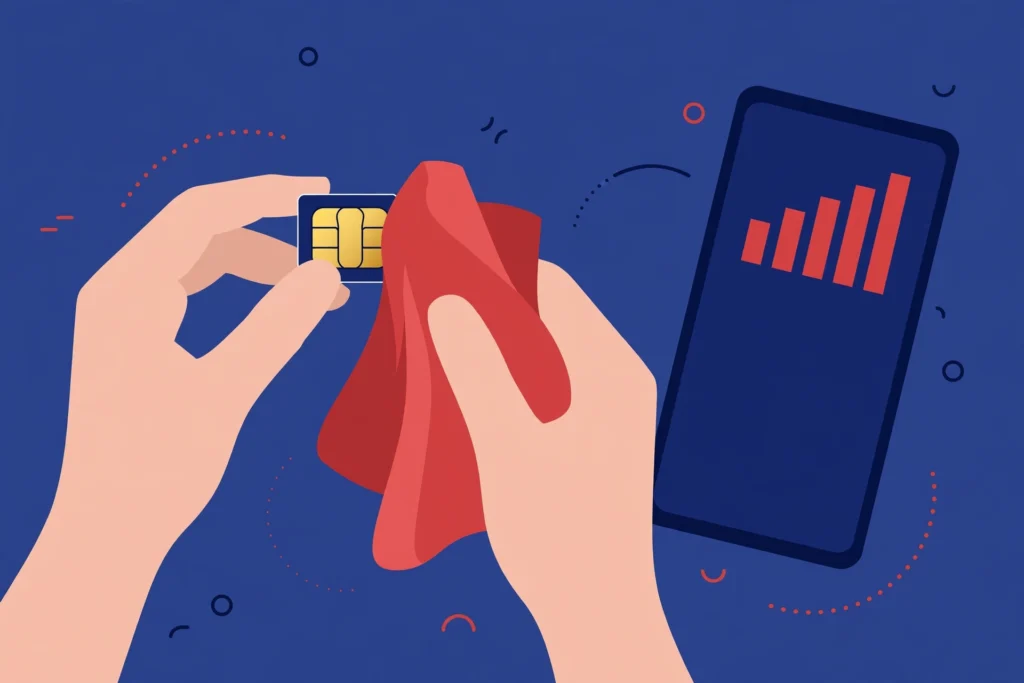
If the quick fixes do not work, turn off your phone, remove the SIM, and gently wipe its metallic contacts with a soft, dry cloth, a step Globe includes in its own troubleshooting guide. Reinsert it and check for signal again.
If cleaning the contacts does not help, put your TM SIM in a different phone. This tells you whether the phone or the SIM is at fault.
If the SIM gets signal in the other phone, the problem is with your original device, and it may need servicing.
If the SIM still has no signal in a different phone, the SIM card itself is likely damaged or worn out. Visit any Globe store with a valid ID to request a free SIM replacement. Your mobile number stays the same after replacement.
Check Your Account and Registration Status
A working SIM can still show no signal if your account itself is disconnected. Check your status in the GlobeOne app for these three reasons:
- Non-payment on a postpaid line can suspend service until the balance is settled.
- A prepaid SIM that goes a full year without any load becomes inactive, according to Globe’s official troubleshooting page.
- A SIM that was never registered under the SIM Registration Act gets deactivated once the registration deadline passes. Unlike the other two cases, Globe has stated that a SIM deactivated for missing registration cannot be reactivated or repurchased, so the number is lost permanently. If you are unsure whether your TM SIM was ever registered, check your status through the GlobeOne app or the online registration portal before assuming the signal problem is technical.
Coverage and Environment Issues
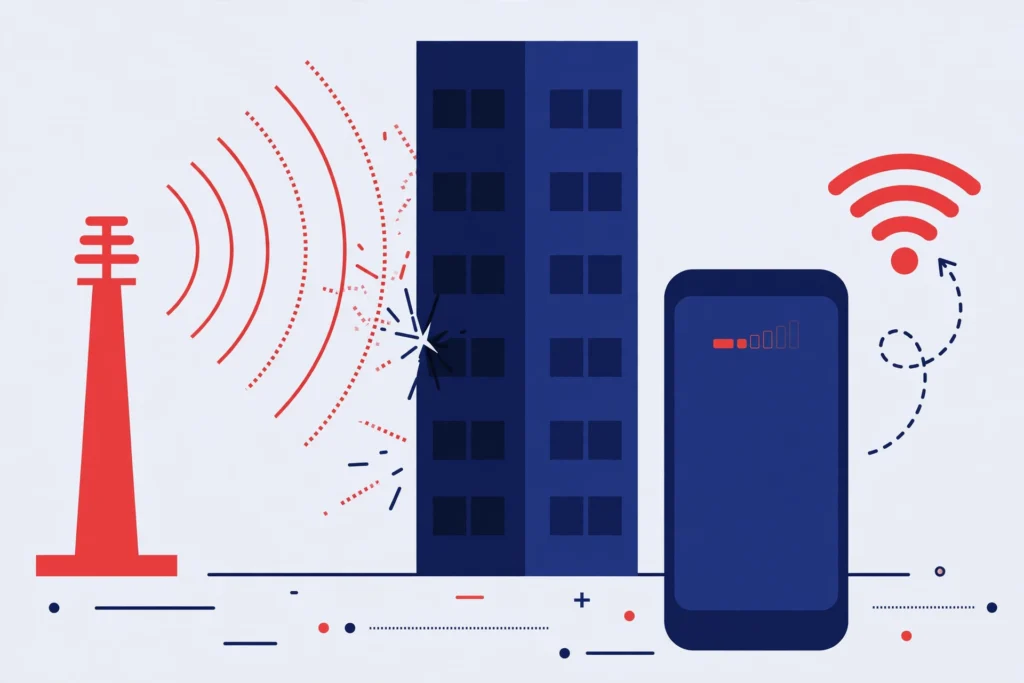
Sometimes the SIM and the account are both fine, and the signal is just weak where you are. Thick concrete walls and metal structures can block a cell signal, which is common in basements, elevators, and steel-frame buildings, according to Globe’s official troubleshooting page.
If you are stuck in a low signal area, connect to WiFi and use VoWiFi to make calls and send texts over the internet instead of the cell network. For data, switching to a broadband or WiFi connection works as a temporary fix until you move to an area with better coverage.
When to Visit a Globe Store or Contact Support
If you have tried the steps above and still have no signal, reach out through an official channel:
- Message Globe through Facebook Messenger at @GlobePH.
- Call 211 for free using any Globe mobile number, or (02) 7730-1000 from a landline.
- Visit any Globe store with your SIM and a valid government issued ID. Bring your phone too, so staff can test the SIM directly.
Mention whether you have already tested the SIM in another phone and checked your account status. This helps staff diagnose the issue faster.
Prevention Tips
- Register your TM SIM before the legal deadline so it never gets deactivated for non-registration.
- Load your prepaid SIM at least once a year to keep it active.
- Avoid removing and reinserting your SIM often, since repeated handling can wear out the card.
- Keep your phone’s software updated, since outdated software can cause network connection issues.
- Check Globe’s coverage information before traveling to a new area.
- Avoid cutting or modifying your SIM card yourself. If you need a different SIM size, request a free swap at a Globe store instead of altering the card.
Conclusion
Most TM SIM signal problems clear up with a restart, a SIM reinsert, or a quick check of your network settings. If those do not work, the cause is usually either a damaged SIM, an inactive account, or a coverage gap in your area, and each of these has a clear next step. If your SIM was never registered, resolve that first, since an unregistered SIM that misses its deadline cannot be reactivated. When basic troubleshooting does not restore your signal, a Globe store or the official support channels can confirm the exact cause and fix it.